AI Harness Kit
Harness in a box
One assistant that knows you, remembers what matters and follows your rules. Free, plain files you own.
There is no magic button. There is one prompt that does most of the work, about an hour of your time, and a check after every step so you know it worked.
What is a harness?
An AI assistant on its own is clever but forgetful. Every chat starts from scratch, it doesn't know your week, and it has no house rules. A harness is what you build around the assistant so it can run part of your life or business with you: a memory, a set of playbooks, connections to your apps, routines that run on time and firm rules about what needs your yes.
The argument of this kit is simple: the model is not what makes an assistant useful to you. The building around it is. Swap the model and a good harness still works; skip the harness and the best model still forgets you by Monday. The easiest way to picture it is a building.
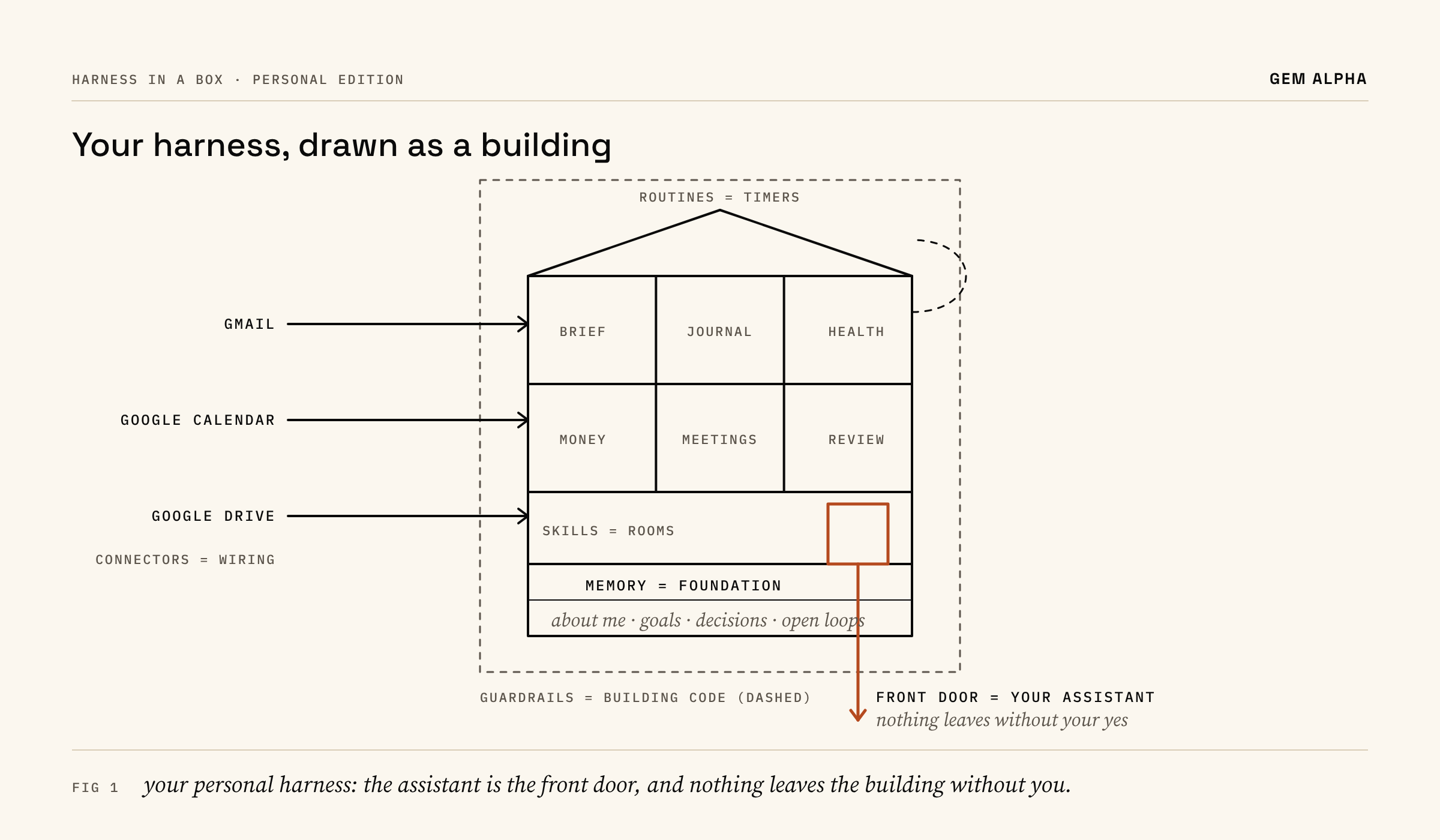
- The foundation is memory. A few plain files about you: who you are, your goals, decisions you've made and open loops. Everything else stands on it.
- The rooms are skills. Each room is a written playbook for one job. You start with two: the morning brief and the evening journal you switch on in Step 5. When you think "I need another AI", you usually need another room.
- The wiring is connectors. You start with Google Calendar and Gmail, read-only, because the morning brief can't plan your day without them.
- The timers are routines. They are why the brief arrives at 6:30am whether or not you remember to ask.
- The building code is guardrails. It drafts, you send. Nothing is paid, posted or deleted without your yes.
- The front door is the assistant you talk to. One door. You walk in, ask, check and approve.
Why bother?
- It remembers. You stop re-explaining yourself.
- It's yours. Memory and skills are plain text. If a better assistant arrives next year, you move house and take the furniture.
- It's safe by default. New skills run on sample data first, connections start read-only, and anything that leaves the building waits for you.
- It grows one room at a time. Add a skill when you catch yourself repeating a job.
The trade-off is honest: a harness asks for an hour to set up and a week of correcting it before it feels like yours. If you won't give it that week, a plain chat is fine.
Which assistant?
For the most value, use Grok Bot or ChatGPT Dots. Both are always on: each has its own cloud computer, connects to your apps, runs work while your laptop is closed and asks before anything important goes out. That's what turns a harness from a filing system into something that works between chats.
Ruby's current preference is Grok Bot, and it's where he does most of his testing.
| Grok Bot | ChatGPT Dots | |
|---|---|---|
| Plan you need | A Grok Bot account | ChatGPT Pro or Business Premium. Dots are not on Plus. |
| Runs while you're away | Yes, routines on its own cloud computer | Yes, always on with its own cloud computer |
| Connects your apps | Connect apps in the sidebar | Your ChatGPT apps and plugins |
| Asks before acting | Rules you save, plus approval cards | Built-in approval rules plus Custom Rules |
On ChatGPT Plus? The kit still works in a ChatGPT Project. You'll do more of the running yourself, because a Project can't update your memory or run routines hands-free the way a dot can. Claude also works; its guide is in the repo.
Which edition?
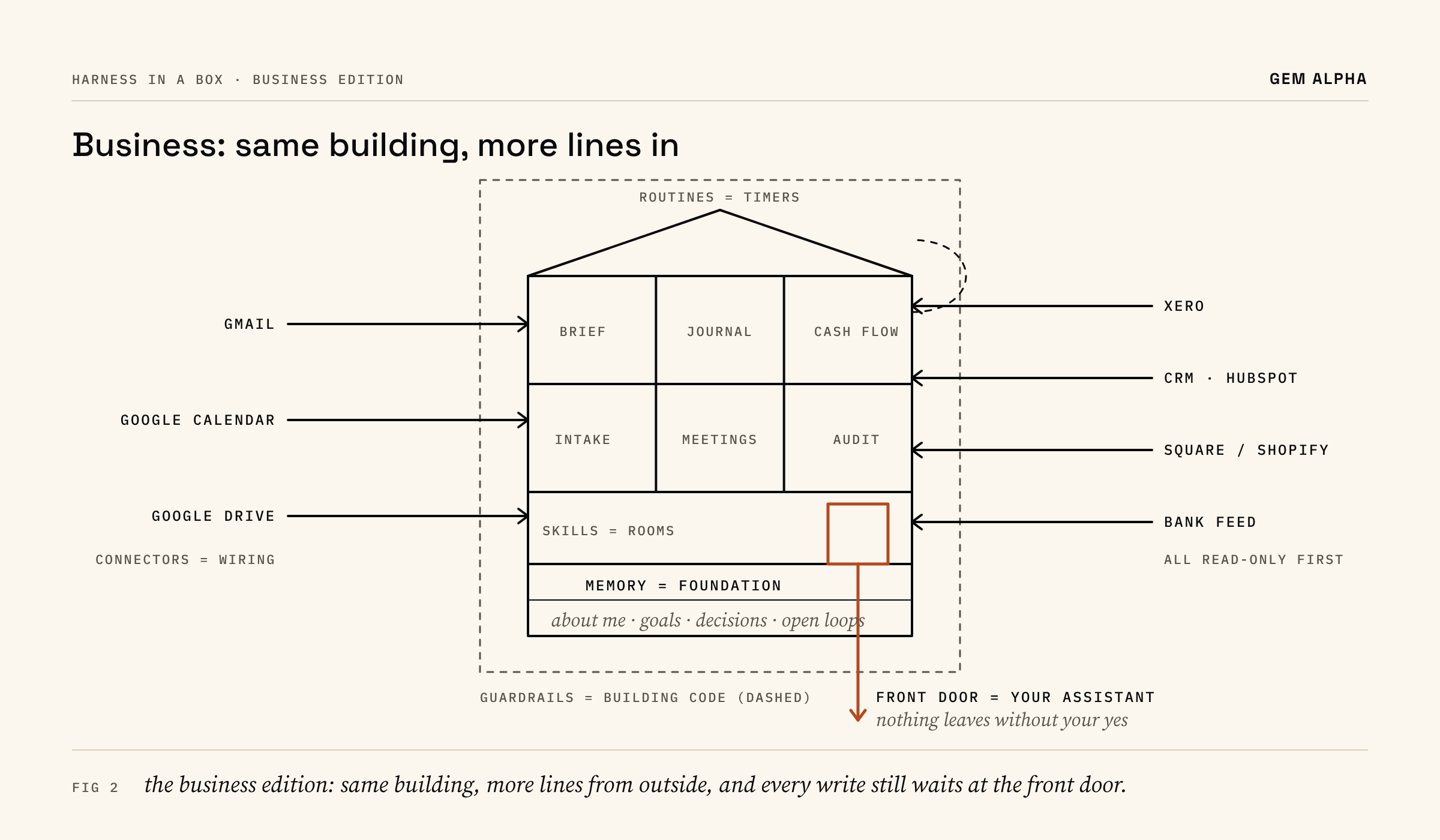
- Personal edition. For anyone. Life areas such as health, family, money and career, plus a morning brief, a journal and optional coaches.
- Business edition. For solopreneurs and small business owners. It sits on top of personal, because you run your life and your business with the same head. It adds business areas, plus skills for document intake, cash flow, a tool audit, a board of digital directors and mapping jobs to digital employees, and a guide to connecting Xero read-only.
Everyone starts with personal. Add business after personal has run well for about a week.
Before you start: checklist
Tick all of these first. Most setup failures come from skipping one.
- An account on your assistant: Grok Bot (start at docs.x.ai/grok-bot/overview), or ChatGPT Pro or Business Premium for Dots (Plus as the fallback).
- Dots users: create your dot first in the ChatGPT desktop app or a desktop browser and give it a name. OpenAI says setup starts there; after that you can use your phone.
- A computer with a web browser for setup. A phone is fine afterwards.
- A Google account you're happy to connect (Gmail, Calendar, Drive).
- Two-step sign-in turned on for your assistant account and your Google account (for Google: myaccount.google.com > Security > 2-Step Verification).
- Your red lines written down: things that never go into an AI, such as passwords, full card numbers and ID scans. You'll paste them in during the interview.
- About an hour, without interruptions.
- Business edition only: your Xero login, and a word with your bookkeeper that the assistant will read the books.
Set it up, step by step
Step 1. Paste the kickoff prompt (2 minutes)
Open a new chat with your assistant (for Dots, a chat with your dot) and paste the prompt for it. Swap in your name and city. Everyone installs personal first, even business owners. You don't need to know what "clone" or "raw link" mean; they're instructions for the assistant.
Grok Bot
Set up my AI harness from https://github.com/RubyWolff27/harness-in-a-box.
Clone it, read core/AGENTS.md first and follow it. Install core plus the
personal edition. Interview me one question at a time, create my memory
home, save the skills and create my routines. Ask before connecting
accounts, writing documents or scheduling anything. I'm [name] in [city].
ChatGPT Dots
Set up my AI harness from https://github.com/RubyWolff27/harness-in-a-box.
Read core/AGENTS.md first (raw link:
https://raw.githubusercontent.com/RubyWolff27/harness-in-a-box/main/core/AGENTS.md)
and follow it for ChatGPT Dots. Install core plus the personal edition.
Interview me one question at a time, create my memory home, save the skills
and set up my routines. Ask before connecting apps, writing documents or
scheduling anything. I'm [name] in [city].
ChatGPT Plus (fallback): create a new Project called My Harness (in the sidebar under Projects; menu names change, so ask ChatGPT if you can't find it). Paste the Dots prompt inside that Project, replacing "for ChatGPT Dots" with "for ChatGPT".
Done when: the assistant tells you it has read AGENTS.md and asks you its first interview question.
Step 2. The about-me interview (20 minutes)
Answer one question at a time. Short answers are fine, and "skip" is fine too. When it asks about boundaries, paste your red lines. This pours the foundation.
Done when: it shows you a summary of you, your goals and your current open loops, and you've corrected anything wrong.
Step 3. Approve your memory home (5 minutes)
It offers to create a few files or Google Docs: About me, Goals, Decisions and Open loops. Say yes, then ask "Where did you save them? Give me the links." Open one and read it.
Done when: you can open the About me file yourself and it's accurate.
Step 4. Connect Google, read-only (5 minutes)
Say: "Connect Google Calendar and Gmail, read-only for now." A Google sign-in window opens. Sign in yourself and check what access is listed before you click Allow.
Done when: you ask "What's on my calendar tomorrow?" and the answer matches your calendar.
Step 5. Switch on two routines (5 minutes)
Say: "Create a morning brief every weekday at 6:30am and an evening journal prompt at 8:30pm, in my time zone."
Done when: the assistant shows both routines with their next run times. Ask it to do a test run of the morning brief now.
Step 6. Live with it for a week
Read the brief. Answer the journal. When something is wrong, say so plainly ("too long", "don't mention work on Sundays"). It writes the fix into memory.
Done when: after a week, the brief feels like it was written for you, and it remembers something you told it days ago.
Step 7. Add rooms one at a time
When you notice a job you keep repeating, say: "Turn this into a skill and log the change."
Done when: the new skill is in your skills list and the change is in your edit ledger.
Business edition: the extra steps
Start only once personal Step 6 is done.
- Kickoff. Say: "Install the business edition from harness-in-a-box. Read editions/business/README.md and follow it. Interview me one question at a time." Done when: you have a Business profile file and six business area files.
- First skill on sample data. Shadow mode means the skill does the work on practice files and you compare its answers; nothing real is touched. Say: "Install the skill it recommends and run it in shadow mode on the sample data in its tests folder. Show me the score." Done when: it scores 85% or better and the result is logged. Nothing touches real customers or suppliers yet.
- Connect Xero read-only. Say: "Follow editions/business/integrations/xero.md and connect Xero read-only. Practise on the Demo Company first." Done when: it names the right organisation and its overdue total matches Xero.
- One real week in shadow mode, then decide whether to promote the skill. Writes to Xero, emails to customers and payments always need your yes.
If something goes wrong
- "I can't open that link." On GitHub, click Code > Download ZIP, upload the ZIP to the chat and say "Read core/AGENTS.md in this ZIP and follow it."
- It skips the interview and dumps files on you. Say: "Stop. Go back to AGENTS.md step 1 and interview me one question at a time."
- I can't see Dots. Dots need ChatGPT Pro or Business Premium and are still rolling out. Use the Plus fallback for now.
- The Google sign-in didn't appear, or failed. Check pop-ups aren't blocked, sign in with the right Google account, then ask again.
- A routine didn't run. Ask "Show my routines and their last run." Check the time zone. Ask for a test run.
- The brief is wrong or generic. Your memory is thin. Say "Interview me again about my week and update my memory."
- It did something without asking. Say "Save this rule: never [action] without my explicit yes", then check the rule is in memory.
- Menus don't match these steps. App menus change often. Ask your assistant "Where is [setting] in the current app?"
Rules of thumb
- One assistant, many skills.
- It drafts, you send.
- You own the memory.
- Change one thing at a time, and write it down.
Free, MIT licence. Built and tested by Ruby.